clone virtual machine without vCenter using ESXi
How to clone virtual machine without vCenter using ESXi base host machine, First think why we required to clone the virtual machine..? If we would like to make multiple virtual machines as same exact virtual machine.
Connect to the vSphere Hypervisior using vSphere client and power off the source virtual machine.
How to clone virtual machine without vCenter using ESXi
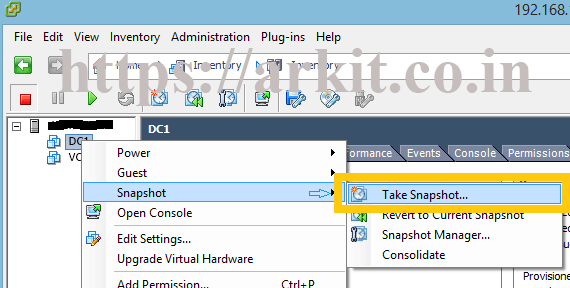
In order to clone first take snapshot of existing virtual machine to do that, Right click on the current virtual machine –> Snapshot –> Take Snapshot. Example is shown in below screenshot
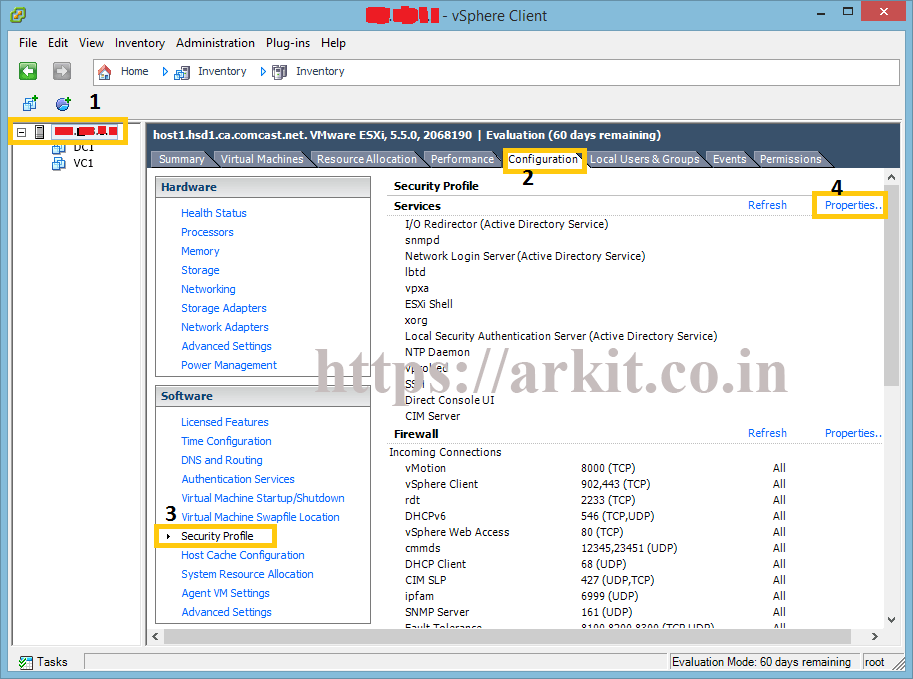
Now Select the base host name and go to configuration tab –> Click on Security profile ( As shown in below screenshot )
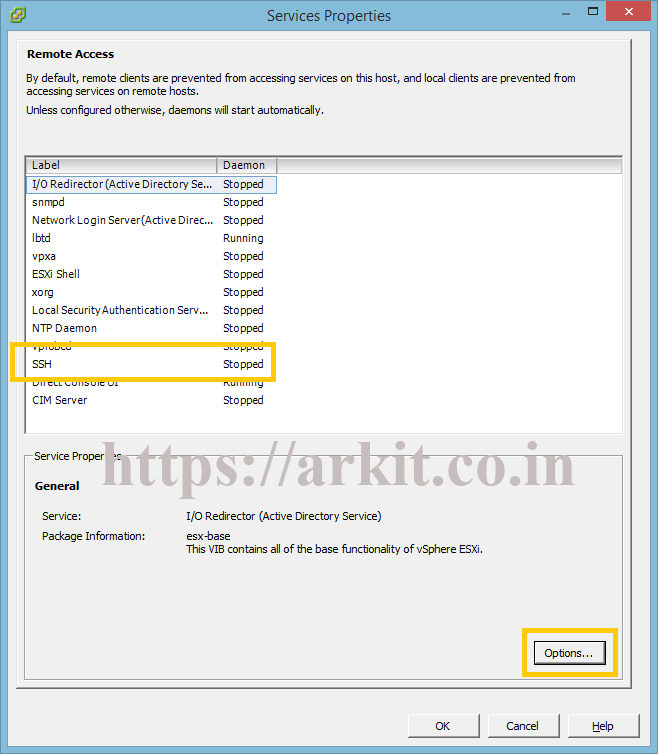
Select SSH and Click on Options
Start the SSH service to connect ESXi using Command line interface ( Refer Below screenshot )
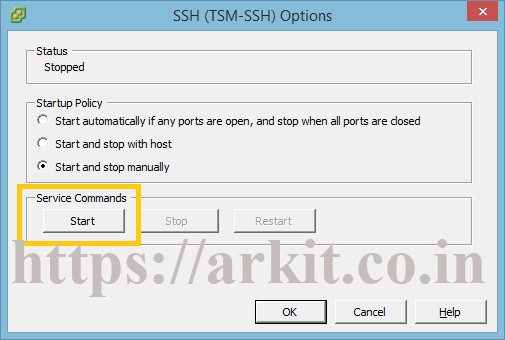
Start SSH service – Click on Ok
Note: You have to shutdown the Virtual Machine before you run vmkfstools command
Login to the ESXi host command line interface using SSH service as root user (Below is the screenshot after login to the Command line interface)
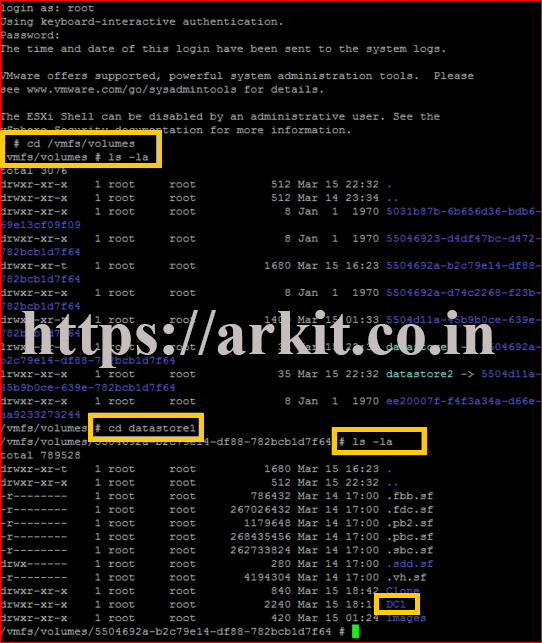
Go to /vmfs/volumes/ directory and type ls -la for viewing the list of volues
# cd /vmfs/volumes/
# ls -la
Clone the disk file. To clone disk use below command
# vmkfstools -i /vmfs/volumes/datastore1/DC1/DC1-00001.vmdk /vmfs/volumes/datastore1/newclone.vmdk -d thin
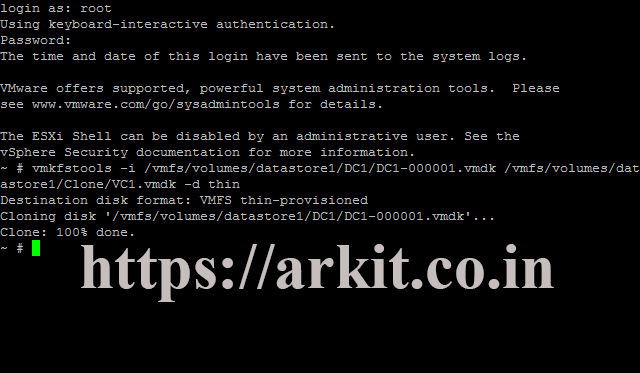
Now lets create an New Virtual machine with cloned disk
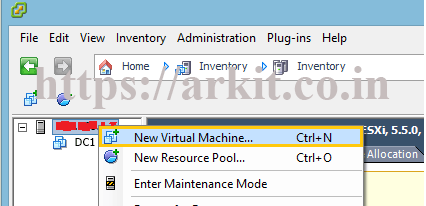
Right Click on ESXi base host machine name and Click on New virtual Machine OR press Ctrl+n (As shown in above screenshot)
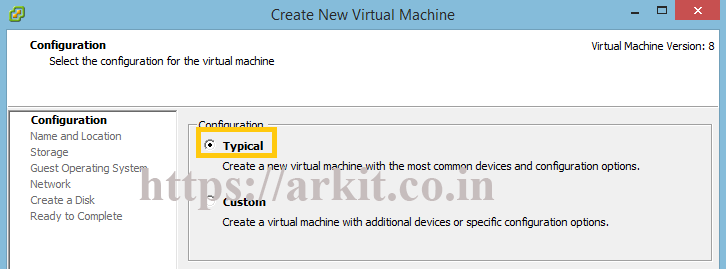
Now it will ask you which type of VM you would like to create (Next Step)
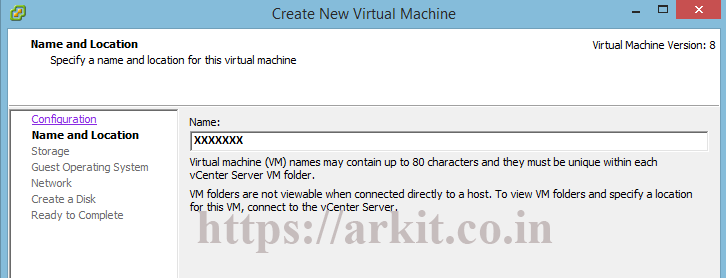
Provide Virtual machine name

Select the Datastore where you would like to store your Virtual machine files
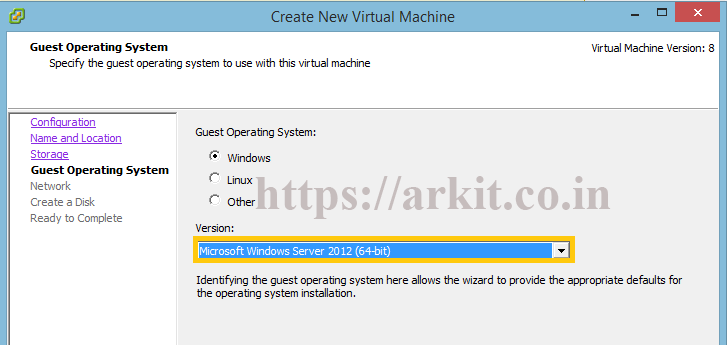
Select Guest Operating system (Windows, Linux Or Other)

Now select How many NIC’s you want to create and Select the virtual machine NIC VLAN
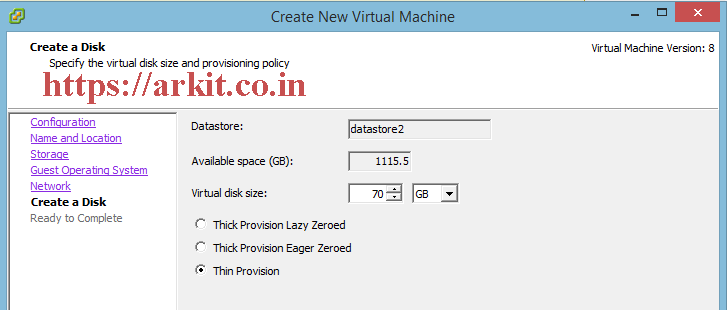
Provide Disk size and select its type of provisioning preferred is thin

Check Edit the virtual machine settings and click continue
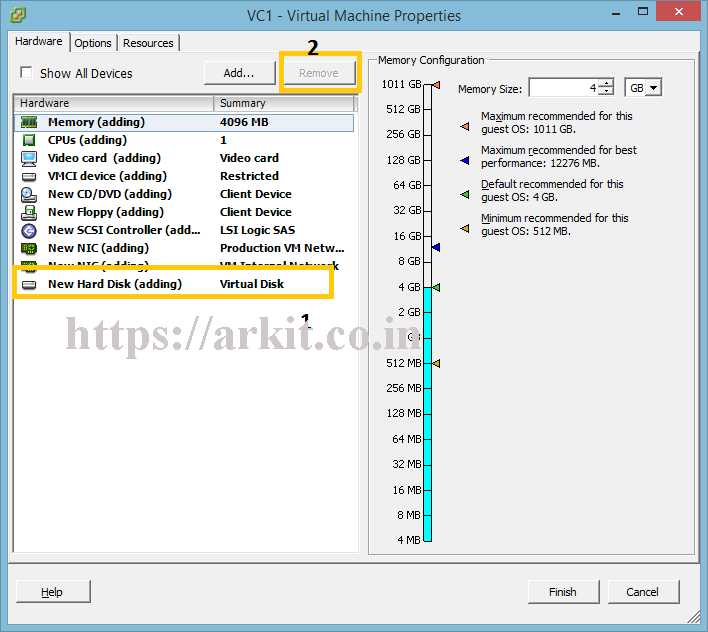
Select curent disk–> Click on remove. Remove existing Disk because we do not required. Add newly cloned disk to make this virtual machine as exact its parent
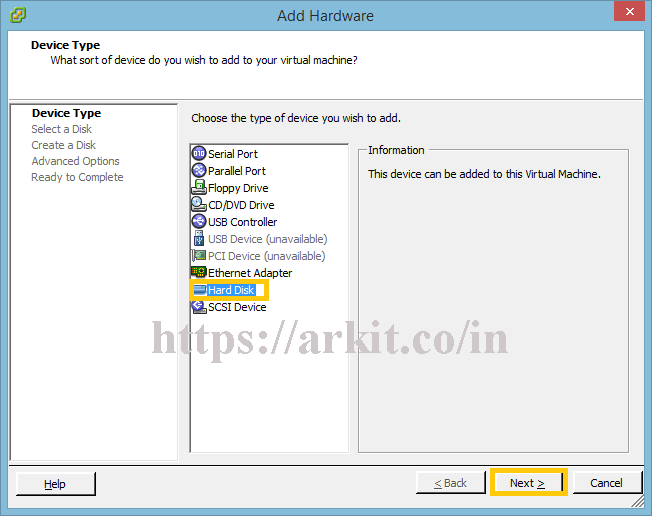
click on add button to attach new one, Select Hard Disk Click Next
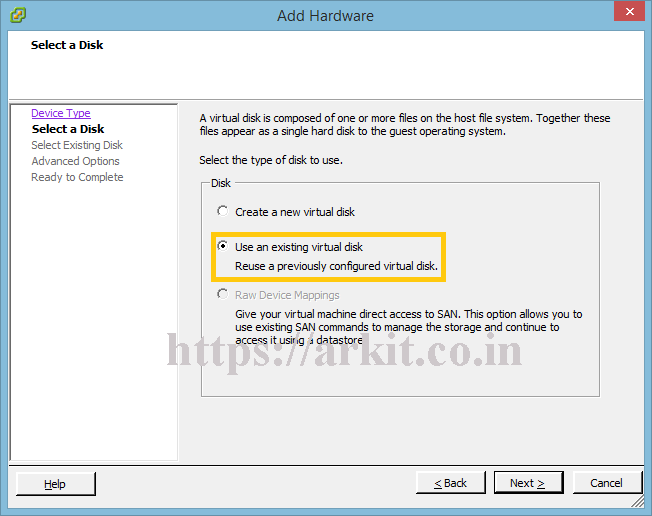
Select second option that is “Use an existing virtual disk” Click Next

Browse datastore and select the new .vmdk file Click open then Click Next
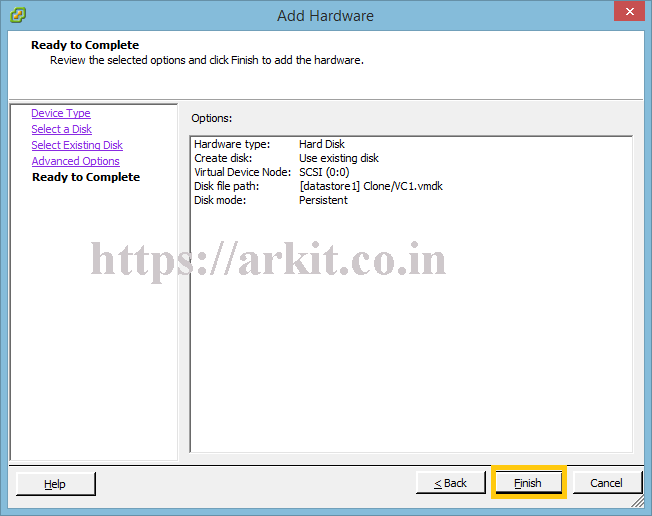
Click Finish
That’s it Virtual machine successfully cloned.
Conclusion
We can also clone virtual machine using ESXi.
We would like here your feedback, is this useful for you..?
Thanks for Your Wonderful Support and Encouragement
More than 40,000 techies are part of our ARKIT community. Join us today and keep learning Linux, Cloud, Storage, DevOps, and IT technologies.


You have skipped one important step – you need to shutdown the VM before you could use the vmkfstools as Virtual machine disk files are locked while in-use by a running virtual machine.
Thank you. I have added that line.
The below has worked in 3.x, and still works in 6.x and I think is a little easier…
First, shutdown the vm, browse the datastore in the client (should be on summary tab of the vm and right click and pick browse, or get to it from host config or summary). Then browse to it on the left so all the files are on the right. Select all and right click and pick copy. Then navigate to root on the left panel and right click on right for new folder. Go into the folder and then on the right click paste. After the copy is complete, right click on the .vmx file and pick add to inventory, put in a name and take the defaults… and that is it.
PS: The nice thing about cloning with vcenter (if you have vcenter) is you can do it without the shutdown (for a crash consistent copy).
Thank you very much for your review and comment
Hi, Thanks for article and comment . how about if we download VM files & upload it to other ESXi host.?
Using Extrasphere 2.0 you can clone running VM to the same or another ESXi host (including free licensed) with or without shared storage… and it’s free.